OANDA history export, and the time zone that skews it
OANDA's trade history comes out of the Hub as a CSV: Reports > Transaction History, choose the account, dates and time zone, then Export to csv. That time zone field is the trap. OANDA's help says the default is GMT-12. Leave it and every trade is stamped twelve or more hours off, which wrecks session stats in any journal. Set it to UTC first. If you trade OANDA through MT4 or MT5, skip the file and sync live.
Exporting from the Hub, step by step
- Log in to the Hub and open Reports (some regions file it under Documents), then Transaction History.
- Select the account, a start date and an end date.
- Set the Timezone. Choose UTC, or your own zone if you set the same zone in the journal.
- Press Show Transactions, check the rows look right, then Export to csv.
The transaction date column shows the zone you picked as an offset or abbreviation, like -12, +5 or ET. Glance at it before you import. If it still says -12, go back.
Why the time zone matters this much
Take a London open trade at 08:15 UTC. Exported at GMT-12, it reads 20:15 the previous day. Your journal now files it under the Asian session and on the wrong calendar day. Do that across a year of trades and your "best session" and "worst weekday" charts describe a trader who does not exist.
Transactions are not trades
The Hub's transaction history lists everything that touched the account: orders filled, trades closed, financing, commission, transfers. For the journal you want the rows that open and close positions. OANDA documents a few things about how money shows up:
- Financing: on v20 Hub statements, financing for closed positions is aggregated under a Financing column.
- OANDA MT4 (v20): financing is aggregated too, and the per-trade Swap column in the MT4 history report is always zero. Do not read a zero swap there as "no cost".
- OANDA MT5: financing appears in the Swap column as you would expect.
- Commission (US core pricing): 0.70 USD per 10,000 units on each leg, prorated, so roughly 7 USD per 100,000 units per side.
Getting it into the journal
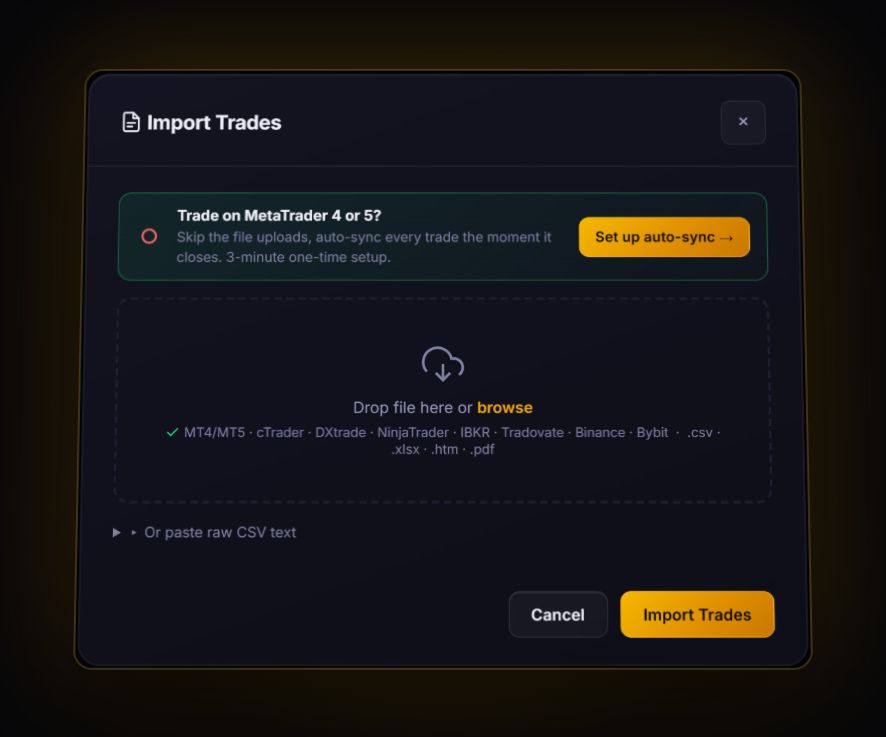
OANDA platform: no dedicated OANDA parser, so the CSV goes through the generic import or the column mapper, where you tag Symbol, Open date and Net P&L once. Check your first few trades against the Hub. OANDA sizes in units, and if a file is read as raw buy and sell fills the journal treats the size as lots, so P&L comes out thousands of times too big. If that happens, keep only the rows that close trades and map OANDA's realised P&L column, so the journal uses OANDA's own figure. OANDA MT4 / MT5: RBSync syncs live, and the EA's server offset puts times in UTC automatically.
Two cleanup steps before importing make the result far cleaner: delete transfer and deposit rows, and if you export a long period, split it by quarter. Re-importing an overlapping file is safe; the journal skips trades it already has.
What to look at after the import
- Session results. Now that times are honest, open the time-of-day heatmap. Compare it with what you thought your best hours were.
- Financing on held trades. OANDA's end of day is 5 PM New York. Anything held through it pays or earns financing. Add it up for your swing trades only.
- Units into lots. OANDA sizes in units. 10,000 units is 0.1 lot. When you plan the next trade, the position size calculator does the conversion from your stop distance.
Quick answers
How do I export my OANDA trade history?
In the Hub go to Reports, then Transaction History, select the account, dates and timezone, press Show Transactions and then Export to csv.
Why are my OANDA trade times wrong after export?
OANDA's transaction history defaults to GMT-12. Set the timezone to UTC, or your own zone, before you export.
Why is swap zero in my OANDA MT4 history?
On OANDA's v20 MT4, financing is aggregated rather than shown per trade, so the per-trade swap column always reads zero.
Sources
- OANDA help: transaction history (US)
- OANDA help: download your statements
- OANDA help: financing costs on statements
- OANDA help: spreads and commission
Last checked: 8 October 2026. Brokers move menus and change fees without notice, so confirm the current steps and costs on OANDA's own site before you rely on them.
Your broker history, finally readable
Import your file, see your R, sessions and fees in one place. The free plan holds 50 trades.
Start free, no card