MT4 live sync · Read-only · No password

Your MT4 trades, journaled while you trade.

A small read-only Expert Advisor called RBSync runs inside your own MetaTrader 4 terminal and sends each closed trade, every open position and your balance to the journal. You stop typing trades in. You start seeing which setups pay and how much room is left on your prop account.

Free plan: 50 trades, no card, no time limit · Pro $29.99/mo or $299/yr · 30-day money-back guarantee

4.9 from members

Filmed In The Real Journal

Trades arrive on their own. You add the why.

Close a position in MT4 and it lands in the journal with entry, exit, stop, target, lots, commission, swap and its R, ready for your notes and tags.

The short version: RB Trading Pro Journal syncs MT4 live through RBSync, a read-only EA you can open and read. It never asks for your trading or investor password and it contains no order functions, so it cannot open, change or close a trade. It is built by Nathan, a trader of 18 years who publishes his own Trade Desk record, winners and losers alike.
What the sync gives you

What arrives in your journal from MT4

The EA reads three things: open positions, closed history, and balance and equity. Here is what you get from them.

Every closed trade, without typing
Entry, exit, stop, target, lots, gross P&L, commission, swap, open and close times, session and realised R. On first connect, up to five years of history back-fills, as far as your broker still holds it.
Open positions, live
Open trades show on your dashboard with floating P&L from the price feed and stop and target proximity alerts. Notes and tags you add to an open trade survive every sync.
Prop drawdown room, as the market moves
Link the account to the Prop Tracker and your daily and total drawdown update with the open trades, so you see how much you can still risk before you click. The Prop Tracker is on the free plan.
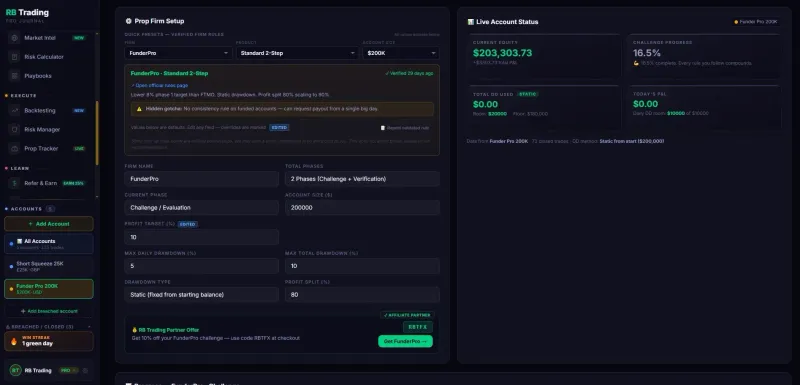
The Prop Tracker in the RB Trading Pro Journal: a FunderPro 200K challenge with its daily and total drawdown limits and live account status

The Prop Tracker, from the journal itself: firm rules on the left, live account status on the right.

Set it up in about two minutes

MT4 setup, step by step

These are the same steps the journal shows you in Settings. You need the journal open in one window and MetaTrader 4 in the other.

  1. Get your sync code. In the journal, switch to the account you want to link, open Settings, then Live Broker Auto-Sync, and press Set up live sync. Copy the code (it starts RBS-).
  2. Download the EA. Use the MT4 link in the same panel. The file is RBSync.mq4, plain source code you can read before you run it.
  3. Allow the connection. In MT4 go to Tools, Options, Expert Advisors, tick Allow WebRequest for listed URL and add exactly https://rbtrading.site
  4. Put the file in the right folder. Use File, Open Data Folder, then MQL4, Experts. It must be the folder that opens from Open Data Folder, not Program Files.
  5. Make it show up. Restart MT4, or right-click Expert Advisors in the Navigator and press Refresh.
  6. Attach it to any one chart. Drag RBSync onto a chart, paste your code into SyncCode in the Inputs tab, and leave the rest as it is.
  7. Switch AutoTrading on. The EA only reads, but MT4 runs no EA without it.
  8. Check it is live. Back in the journal, Live Broker Auto-Sync shows Live within a minute. Your trades now journal themselves.

The full guide, with troubleshooting for every error, is on the broker sync setup page. On MT5 instead? The MT5 trading journal page has the same steps for that terminal.

Three things to know

Living with live sync

MT4 has to be running
The EA lives in your terminal, so it sends while MT4 is open. Close it and syncing pauses with nothing lost: history catches up when it reopens. If you already run MT4 on a VPS, the sync runs 24/5 with it.
One code per account
Each journal account links to one MT4 account. Running three prop challenges? Make a code for each journal account and run the EA in each terminal. They stay separate.
Prefer files? Import a statement
No EA allowed on your account? Export your MT4 history and import it instead, step by step below. Imports and live sync share one duplicate check, matched on the broker ticket number, so the same trade is never added twice.
Import your MT4 history

How do I export my trade history from MetaTrader 4?

Updated 20 October 2026

Open the Account History tab in the Terminal window, right-click and choose All History, then right-click again and choose Save as Report. MetaTrader 4 saves an HTML statement, and the journal imports that .htm file with stop loss, take profit, commission, swap and profit on every closed trade.

Export from MetaTrader 4

  1. Open your history. In MetaTrader 4, open the Terminal window and click the Account History tab.
  2. Choose the period. Right-click inside Account History and choose All History, or Custom Period for a set date range.
  3. Save the report. Right-click again and choose Save as Report.
  4. Keep the file. Pick a folder and save. The statement is an HTML file (.htm). Import it as it is, with no need to open or edit it.

Import it into the journal

  1. Pick the account. Sign in to the journal and select the account these trades belong to in the sidebar. Imports go into one account, so leave the combined view first.
  2. Open Import. Click Import in the top bar. It is there on every page of the journal.
  3. Drop the file. Drag the .htm report onto the upload zone, or click the zone to browse. The format is read from the file itself, so there is nothing to choose.
  4. Check the preview. It shows how many trades were found, the wins and losses and their total result. If the count looks wrong, close the window and check the export.
  5. Click Import Trades. Trades already in the journal are recognised by ticket number and by price and date, and skipped, so importing the same file again only adds what is new. If some rows match trades you typed in by hand, choose Skip duplicates only.

What the file brings in

  • Every closed trade with its open and close time, type, size, open and close price, S/L, T/P, commission, swap and profit. Buy and sell become long and short on import.
  • Because MetaTrader keeps the stop and target on closed trades, your R is worked out for you.
  • Open trades listed in the statement come in as open trades on your dashboard, and the statement balance is read too.
  • Ticket numbers are kept, so a later import, or the live sync, never adds the same trade twice.
Or skip the file: live auto-sync. The read-only RBSync EA sends each closed trade, every open position and your balance from MetaTrader 4 to the journal on its own, and back-fills up to five years of history the first time it connects. It needs no password, only a sync code from Settings, Live Broker Auto-Sync. See the setup steps.
Is it safe on a funded account

The EA reads. It never trades.

RBSync has no order function in it. The MetaTrader files contain no OrderSend, OrderModify or OrderClose call, so there is no path in the code to place, change or close a trade. It never asks for your trading password or investor password: it runs inside a terminal you are already logged into, and the only link to your journal is a random sync code you make yourself.

What it sends, every few seconds and on each trade event: your account number, server, currency, balance, equity and net deposits, and for each position its symbol, side, lots, prices, stop, target, profit, commission, swap, times and comment. Read the full list on the security page.

Analytics EAs like this are in wide use on funded accounts. If your firm has unusual EA rules, check its terms before you attach it.

Plans

Free to start, Pro when you want the deep numbers

Free
$0, no card, no time limit
  • Live MT4 sync for your first 50 trades
  • Prop Tracker, P&L calendar and risk tools
  • Cloud backup and sync across your devices
  • Unlimited accounts
Pro
$29.99 a month or $299 a year
  • Every trade synced, no cap
  • Full analytics, reports and your RB Score
  • Backtesting, playbooks and 30 AI trade reviews a day
  • 30-day money-back guarantee on your first payment

There is no free trial: the free plan is the trial. Full table on the pricing page.

Keep going

Related guides

Try it on your own account

Let your MT4 fill in the journal.

Start free with your email, make a sync code and attach RBSync. Your next closed trade arrives on its own.

Start Free →

Free plan: 50 trades, no card, no time limit · Pro $29.99/mo or $299/yr · 30-day money-back guarantee

FAQ

Frequently asked questions

Does RB Trading Pro Journal sync with MT4 automatically?

Yes. A read-only Expert Advisor called RBSync runs in your own MetaTrader 4 terminal and sends closed trades, open positions and your balance to the journal. New trades show within about a minute while the journal is open. You can also import an MT4 statement or CSV instead.

Do I have to give my MT4 password?

No. RBSync never asks for your trading password or investor password. It runs inside a terminal you are already logged into, and the only link to your journal is a random sync code you create in the journal.

Can the MT4 sync EA place or close trades?

No. The EA has no order functions in it: no OrderSend, OrderModify or OrderClose. It reads open positions, closed history and balance and equity, and nothing else. It ships as plain source code (.mq4) that you can read before you run it.

Is MT4 live sync free?

Yes, for your first 50 trades on the free plan, with no card and no time limit. Pro, at $29.99 a month or $299 a year, syncs every trade with no cap and comes with a 30-day money-back guarantee.

Does it work with prop firm accounts such as FTMO?

Yes. Link the synced account to the Prop Tracker and your daily and total drawdown update as open trades move. The EA only reads, so it does not interact with trading rules, but if your firm has unusual EA rules, check its terms first.

Does MT4 need to stay open?

Yes, the EA can only send while the terminal runs. If it closes, nothing is lost: your history catches up when it reopens. Traders who run MT4 on a VPS get the sync around the clock with it.

How do I export my trade history from MetaTrader 4?

Open the Account History tab in the Terminal window, right-click and choose All History, then right-click again and choose Save as Report to save an HTML statement. In the journal, pick the account, click Import in the top bar and drop the .htm file. Closed trades come in with S/L, T/P, commission, swap and profit. To skip files altogether, the read-only RBSync EA syncs every trade live.