eToro trades into a journal: the statement, sheet by sheet
Your eToro trades come out of the Account Statement. Create it for the period you want, export it to Excel, and you get several sheets in one file. The one you want is Closed Positions. Save that single sheet as CSV, make four quick edits we show below, and it imports as clean trades with the right symbol, direction and size.
Creating the statement
There are two ways in, and both reach the same report:
- Portfolio > History > Account Statement
- Settings > Account > Documents > View next to Account Statement
Choose one of the preset time frames or Custom, press Create, then use the icon to export as Excel. eToro's help notes the statement is not available for the virtual portfolio or for eToro Options, so demo trades cannot be exported this way.
Which sheet is which
| Sheet | What is in it | For the journal |
|---|---|---|
| Account Summary | Opening and closing balances for the period | Use to check your starting balance |
| Closed Positions | One row per closed position, manual and copied | This is your trade list |
| Account Activity | Deposits, withdrawals, opens, closes, fees, corporate actions | Useful for fees, not for trades |
| Dividends | Payment date, instrument, position ID, net amount, withholding tax | Optional, for long-term holders |
| Financial Summary | Totals for fees, commissions and P/L | A check figure after import |
The journal's Excel reader opens the first sheet of a workbook, and on eToro's file that is the summary, not your trades. That is why the step below matters: open the file, go to Closed Positions, and save that sheet on its own as CSV.
Saving Closed Positions as CSV
- Open the Excel file and click the Closed Positions tab.
- In Excel use File > Save As > CSV. Excel saves only the active sheet, which is exactly what you want. In Google Sheets use File > Download > CSV while that tab is open.
- Make sure the header row is the first row of the file.
Four edits that make it import cleanly
eToro does not publish the Closed Positions column list, and the journal's eToro detection was built from public examples, so we tested a file laid out the common way, with an Action column holding text like "Buy Apple". The detection picked it up, but the symbol came through as "BUY", every trade as a long, and the cash amount as the size. These edits fix all of that:
- Split the Action column. Make a column headed Direction with Buy or Sell, and a column headed Symbol with the ticker (AAPL, not "Apple Inc").
- Size in units. Rename the Units column to Quantity and delete the Amount column.
- Dates. eToro writes dates day first. Format both date columns as
yyyy-mm-dd hh:mm. - Keep the Profit column as it is.
After those edits our test row imported as a short Apple trade with the right prices, dates and loss.
Things that trip people up
Copied trades. Closed Positions includes positions opened by people you copy. If you want to judge your own decisions, tag copied rows as a separate setup, or import them into a separate journal account. Mixing them makes your stats describe someone else.
Amount versus units. eToro shows both the cash invested and the number of units. For size, use units. Cash amount changes with leverage and makes position size stats meaningless.
Overnight and spread fees. eToro charges overnight fees on leveraged and short positions and builds spread costs into prices. The statement's Financial Summary gives the totals. Compare that with the journal's total commission and swap after import, so you know whether the trade P&L figures are before or after fees.
Dividends on shorts. Short a stock over the ex-date and the dividend is deducted. eToro records those deductions in Account Activity, not against the trade.
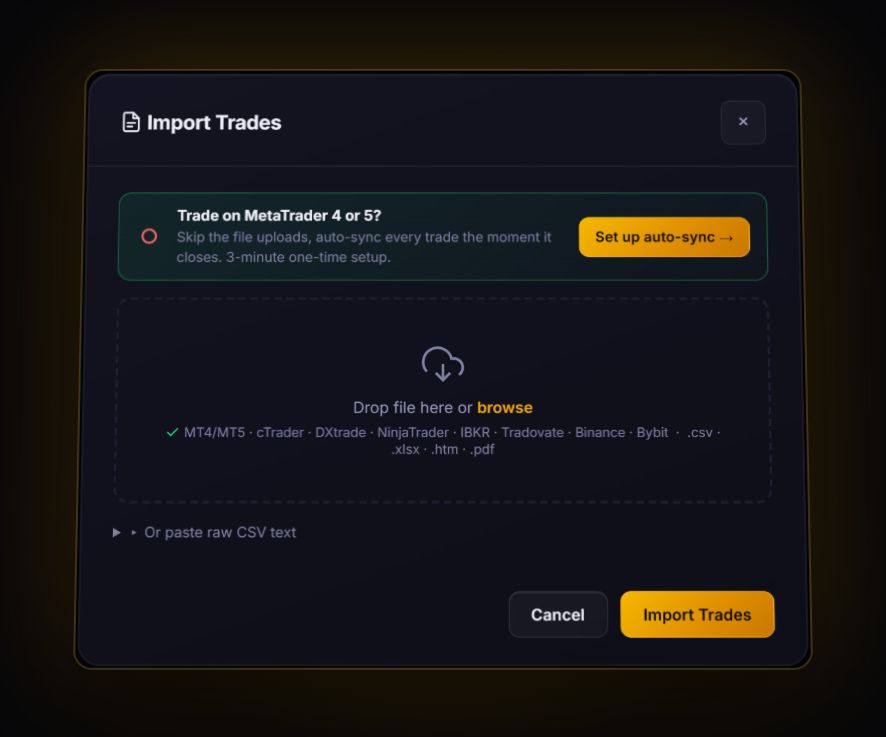
Import the edited Closed Positions CSV. With Symbol, Direction, Quantity, open and close dates, rates and Profit, the journal reads it as finished trades. Layouts it does not recognise go to the column mapper, which remembers your choices. eToro has no MetaTrader or cTrader access, so there is no live sync.
What to review once it is in
- Holding period against result. eToro users often mix day trades and long holds in one account. Split them with tags and look at each on its own.
- Leverage creep. Compare the units you held on your biggest losers against your average. Big losses on eToro usually come from size, not from the idea.
- Drawdown. Check your worst peak to trough. The drawdown recovery calculator shows how much you need just to get back to flat.
Quick answers
How do I download my eToro trade history?
Go to Portfolio, History, Account Statement, pick a time frame or Custom, press Create, then export to Excel or PDF. Your trades are on the Closed Positions sheet.
Can I import the eToro Excel file directly?
Save the Closed Positions sheet as CSV first. The journal reads the first sheet of an Excel file, and eToro's first sheet is the account summary.
Are copy trading positions included in the eToro statement?
Yes, the Closed Positions section covers both manual and copied trades, so tag or separate them if you want to judge your own trading.
Sources
Last checked: 8 October 2026. Brokers move menus and change fees without notice, so confirm the current steps and costs on eToro's own site before you rely on them.
Your broker history, finally readable
Import your file, see your R, sessions and fees in one place. The free plan holds 50 trades.
Start free, no card