thinkorswim trade history, trimmed for a journal
In thinkorswim, everything lives on the Monitor > Account Statement page. Set a custom date range (the default is only the last 24 hours), export it, and you get one long file with many sections. The one you want is Trade History. Cut the file down to that section's header and rows, fix the date format, and the journal pairs your buys and sells into trades.
Step 1: set the date range
Open the Monitor tab, then Account Statement. Schwab's manual notes the default range is the last 24 hours. Use the drop-down next to the account number to set a custom range covering the trades you want.
Step 2: export the statement
Use the menu at the top right of the Account Statement to export it to a file. Schwab's thinkManual page for the Account Statement does not describe the export, so we cannot quote an official menu name. Third-party guides describe it as Export to File, saved as CSV, and the journal's in-app guide points to the same export icon.
Step 3: keep only Trade History
The exported file stacks sections one after another: Cash & Sweep Vehicle, Order History, Trade History, Equities, Options, Profits and Losses, Account Summary and more. The journal reads the first line of a file as its header, so a stacked file will not import cleanly. Open it in a spreadsheet and:
- Find the row that says Trade History.
- Delete everything above the Trade History column header row.
- Delete everything below the last trade row.
- Save as CSV.
Schwab lists these Trade History columns: Exec Time, Spread, Side, Qty, Pos Effect, Symbol, Exp, Strike, Type, Price, Net Price, Order Type, plus a few account and settlement fields. Side, Qty and Price are what the journal needs to pair fills, and Pos Effect (to open, to close) helps you check the result.
Fix the dates before you import. The journal reads dates like 2026-10-01 09:31:00 reliably. US style dates with a time attached, such as 10/1/26 09:31:00, can come through unreadable, which breaks calendar and session stats. In Excel or Google Sheets, select the date column and apply the custom format yyyy-mm-dd hh:mm:ss, then save as CSV.
Options need one extra check
The Trade History section has no multiplier column. When the journal pairs an options buy at 2.50 with a sell at 3.00, it records a 0.50 gain per contract, not the 50 dollars you actually made on a standard 100-share contract. We tested this. For options, either edit the P&L on each trade, or take the realised figures from the statement's Profits and Losses section. Stock trades are not affected: 100 shares bought at 150 and sold at 155 come out as 500 dollars.
Fees
Per-trade commissions and fees sit in the Cash & Sweep Vehicle section, in Commissions & Fees and Misc Fees columns, not in Trade History. Total them for the period and compare with the journal's commission total. If you trade frequently, add your per-trade fee to the trades so net results are honest.
Import the trimmed CSV. Because it has Side, Qty and Price, the journal reads it as fills and pairs them first in, first out per symbol. Unmatched fills stay as open positions. There is no live sync for Schwab or thinkorswim.
What to look at once it is in
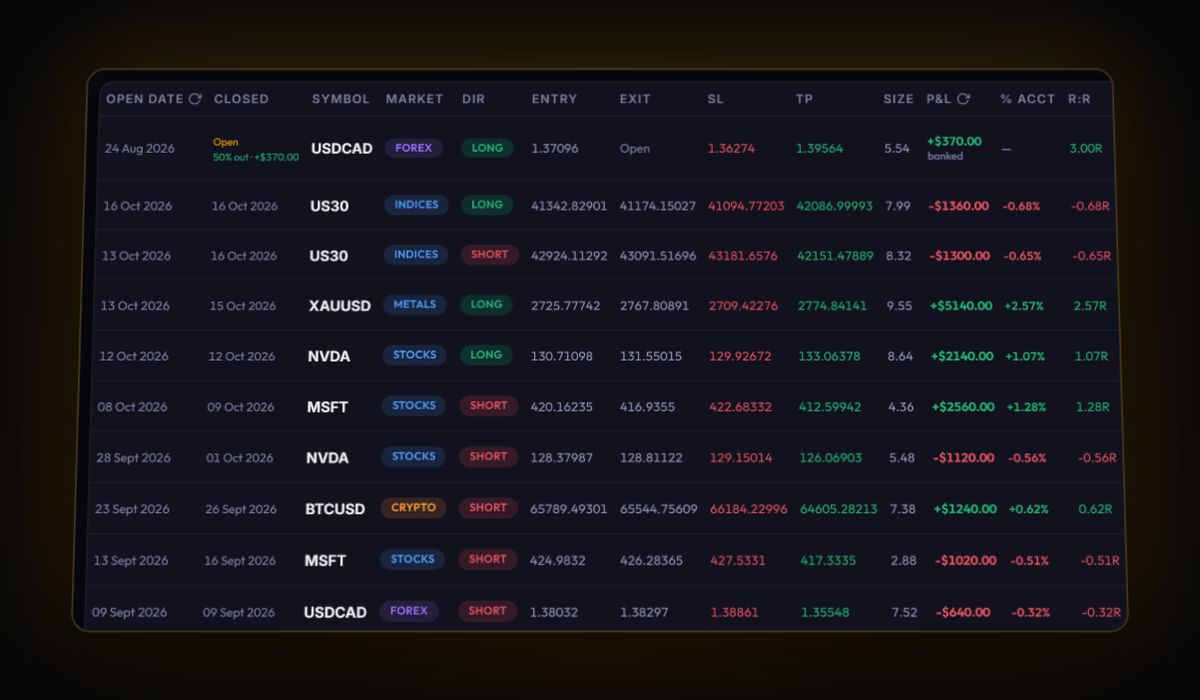
- Time of day. With fixed dates, check results in the first hour after the open against the rest of the session.
- Average winner against average loser. Stock traders who scale out often cut winners early. Our R-multiple guide shows how to see it.
- Separate options from stock. Different risk, different journal accounts.
Futures in thinkorswim
If you trade futures in the same account, they appear in Trade History too. A pair of futures fills is calculated from price and quantity without the contract's point value, the same issue as options. Use the statement's Profits and Losses figure or edit the P&L on those trades, and keep futures in their own journal account.
Quick answers
How do I export trade history from thinkorswim?
Open Monitor, Account Statement, set a custom date range, and export the statement from the menu at the top right. Keep only the Trade History section before importing.
Why does my thinkorswim import look wrong?
The export stacks many sections in one file. Delete everything except the Trade History header and rows, and format dates as yyyy-mm-dd hh:mm:ss.
Are thinkorswim options imported at the right size?
Trade History has no multiplier column, so option P&L arrives per share. Edit it, or use the statement's Profits and Losses figures.
Does thinkorswim export include futures trades?
Futures fills appear in Trade History, but they import without the contract point value, so check or edit their P&L.
Sources
Last checked: 8 October 2026. Brokers move menus and change fees without notice, so confirm the current steps and costs on Schwab thinkorswim's own site before you rely on them.
Your broker history, finally readable
Import your file, see your R, sessions and fees in one place. The free plan holds 50 trades.
Start free, no card