Match-Trader closed positions into your journal
Match-Trader keeps your finished trades on the Closed Positions tab, and that tab has an Export to CSV button with a choice of CSV or HTML. Pick CSV. Each row is a complete round trip with open and close prices; rename two headers we show below and it imports cleanly. Many prop firms run Match-Trader, which makes this the export you will use most if you trade one of their challenges.
Exporting, step by step
- Open the platform and go to the positions area at the bottom of the screen.
- Switch to the Closed Positions tab.
- Press Export to CSV. The drop-down offers CSV, the original format, or HTML, which Match-Trade added in September 2023.
- Choose CSV and save the file.
The HTML version adds a header with the broker name, your name, account number, currency, leverage and the date it was generated, then a table in the same order as the CSV. It reads well, but the CSV is the cleaner file for import. How far back the tab goes is set by your broker or prop firm, not by Match-Trader, so if older trades are missing, ask them.
The columns that matter
Match-Trader's user guide documents the open positions grid, and the closed positions export follows the same logic with close fields added:
| Column | Meaning |
|---|---|
| Order ID | The position's ID. Used to stop duplicates on re-import. |
| Symbol | The instrument, often with a broker suffix. |
| Open Time / Close Time | When you entered and exited. |
| Volume | Size in lots by default. |
| Side | Buy or sell. |
| Open Price / Close Price | Entry and exit. |
| Stop Loss / Take Profit | The levels on the position, when set. |
| Swap | Overnight financing. |
| Commission | The guide describes it as the commission paid for opening the position. |
| Profit | The guide describes it as profit after swaps and commissions. |
| Reason | How the trade closed: manual, TP, SL or Stop-Out. |
Match-Trade does not publish the full closed positions header list for clients, so treat this as a guide, not a contract.
Two renames before you import
We tested a file with these documented column names and found two clashes in how the journal reads headers. It looks for the first column whose name contains "profit", which is Take Profit, not Profit. And it looks for an exit price in the first column containing "close", which can be Close Time. Fix both in a spreadsheet:
| Header | Rename to |
|---|---|
| Take Profit | TP |
| Close Price | Exit Price |
After the renames our test trades imported with the right exit, stop, target, commission, swap and profit. Before, the profit field picked up the take profit price. Check your first import against the platform either way.
The Reason column is gold for review
Most platforms make you guess whether a trade hit its stop or you closed it by hand. Match-Trader tells you. Count how many of your losing trades say manual. If you are closing losers by hand before the stop, your stops are either in the wrong place or you are not trusting them. Count how many winners say manual too: closing winners early is the most common reason a positive win rate still loses money.
A Stop-Out in the Reason column on a prop account is a red flag of its own. It means margin, not your plan, closed the trade.
Gotchas
- Profit is already net. Do not add commission and swap again. The journal treats the Profit column as the net result.
- Symbol suffixes. Prop firms often add suffixes like
.rorm. The journal stores the clean symbol and keeps the raw one, so EURUSD.r and EURUSD count as one pair. - Large histories. If the file is huge, export a quarter at a time. Re-imports skip trades already in the journal by ID.
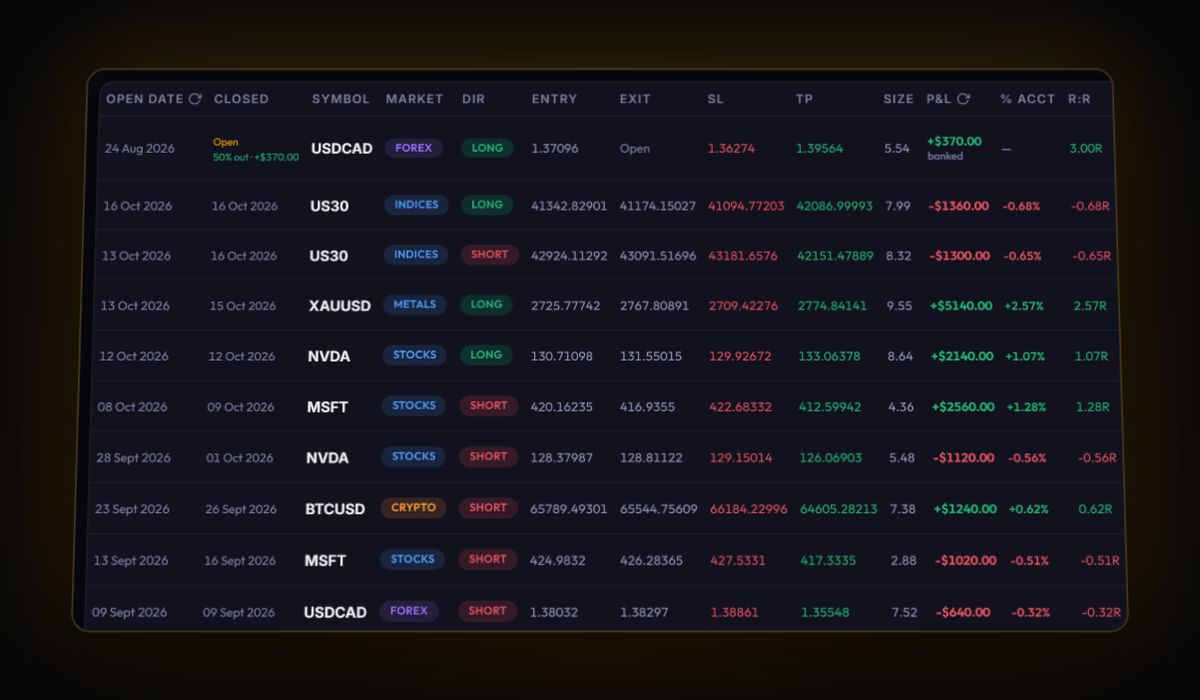
Drop the renamed CSV into Import. With open and close times, prices, volume and profit, the journal reads it as finished trades. Unrecognised layouts go to the column mapper. There is no live sync for Match-Trader today: live sync covers MT4, MT5 and cTrader through RBSync.
After the import
Prop traders should open the prop firm tracker and set the account's rules, so daily loss and max loss room are visible on every trade. Then add stops to trades where the export left them blank and read your results in R. Check your numbers against the prop firm drawdown calculator before your next challenge day.
Quick answers
How do I export trades from Match-Trader?
Open the Closed Positions tab and press Export to CSV, then choose CSV. An HTML option exists too, but CSV is better for importing into a journal.
Does Match-Trader profit include commission and swap?
Match-Trade's user guide describes profit as after swaps and commissions, so treat it as your net result.
Can Match-Trader sync live to the RB Trading journal?
Not today. Live sync covers MT4, MT5 and cTrader. Match-Trader trades come in through the CSV export.
Sources
- Match-Trader platform user guide
- Match-Trade: September 2023 releases (HTML export)
- Match-Trade: trade closure reason now visible
Last checked: 8 October 2026. Brokers move menus and change fees without notice, so confirm the current steps and costs on Match-Trader's own site before you rely on them.
Your broker history, finally readable
Import your file, see your R, sessions and fees in one place. The free plan holds 50 trades.
Start free, no card