TradeLocker has no export button. Here is what to do
TradeLocker's own support centre is clear: the platform does not offer built-in trade history exports, and CSV downloads, PDF reports and printing are not supported. It only displays the history your broker's server sends it. So the export comes from your broker or prop firm dashboard, not from TradeLocker. If they give you a CSV, the journal can read it.
Why there is no export
TradeLocker is a front end. Your account, your fills and your history sit on your broker's server. TradeLocker shows them in the Trades panel, but its support article (updated May 2026) says it does not offer native journaling or history downloads and points you back to your broker or prop firm. Some third-party sites describe a "TradeLocker CSV". That conflicts with TradeLocker's own statement, so we would not count on it.
Where to look instead
- Prop firm dashboards. Most firms that run TradeLocker show a trading journal or account history in their own client area. Look for a download or export button there. This is usually the best source.
- Broker client portals. Retail brokers on TradeLocker generally offer account statements in their portal. Ask support for a CSV or Excel version if you only see PDFs.
- Ask for it. A short message to support asking for "closed trade history as CSV for account X, dates Y to Z" works more often than you would think.
What the Trades panel shows you
Even without an export, the panel tells you what a good file must contain, which helps when you check what your broker sends:
| Tab | What you see |
|---|---|
| Closed positions | Instrument, entry price, exit price, open and close dates, lot size, profit or loss |
| Order history | Market, stop loss, take profit and pending orders with statuses Placed, Filled, Rejected, Replaced |
| Balance | Deposits, withdrawals, swaps and other balance changes as separate rows |
Note the last row: swaps show up as their own balance rows, not inside the trade. If your broker's file comes from the same data, your trade P&L may be before swaps. Check one multi-day trade by hand.
Importing a broker file
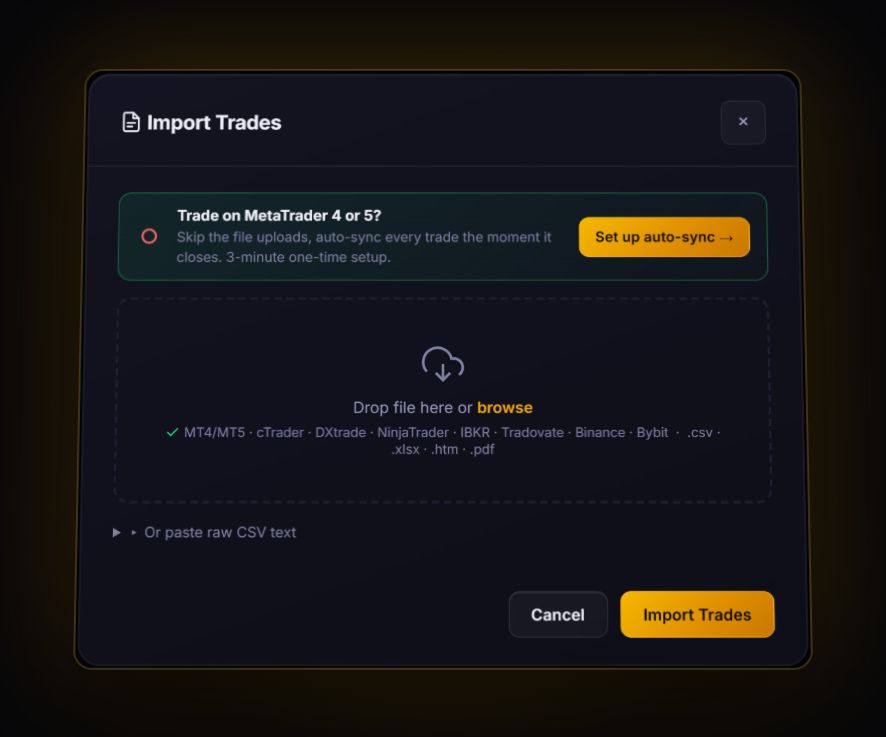
Drop the CSV from your broker or prop firm into Import. The journal has TradeLocker-style detection for files with instrument, side and quantity headers, and the column mapper handles anything else. No live sync for TradeLocker: live sync covers MT4, MT5 and cTrader.
The detection is built from public naming conventions, not from a guaranteed file layout, because TradeLocker itself does not publish one. If the preview looks wrong, cancel and use the mapper. Tag at least Symbol, Open date and Net P&L. Add Close date, Entry price, Exit price and Size if you have them, so R and holding time work.
If you cannot get a file at all
Log trades by hand for a while. It sounds like a step back, and it is slower, but traders who log manually often review better because they look at each trade as they type it. A manual entry takes under a minute if you record five things: symbol, direction, entry, stop, result. Add a screenshot and one line on why you took it. Twenty trades logged like that teach you more than five hundred imported and never opened.
If your prop firm also offers the same challenge on MT5 or cTrader, that is worth knowing: those platforms can sync to the journal live with no export at all.
Review checklist for TradeLocker traders
- Set the prop firm rules on the account so daily loss room is visible.
- Add stops and read results in R. Use the R-multiple calculator for a quick check.
- Check swaps separately if the file came from balance data.
What to ask your prop firm for
When you ask for a file, be specific and you will get something usable. Ask for closed trades only, as CSV, with these fields: symbol, side, open time, close time, open price, close price, lots, commission, swap and net profit, with times in UTC. A file like that imports cleanly. If they can add the stop loss that was on each trade, even better: the journal can then show R without you typing anything.
Quick answers
Can you export trade history from TradeLocker?
Not from TradeLocker itself. Its support centre says CSV downloads, PDF reports and printing of history are not supported. Get the history from your broker or prop firm instead.
Where do I find my TradeLocker trades for a journal?
In your broker's or prop firm's client area, which stores the history TradeLocker displays. Ask their support for a CSV if you only see PDFs.
Does TradeLocker sync live with the RB Trading journal?
No. Live sync covers MT4, MT5 and cTrader. TradeLocker trades come in from a broker file or manual entry.
Sources
Last checked: 8 October 2026. Brokers move menus and change fees without notice, so confirm the current steps and costs on TradeLocker's own site before you rely on them.
Your broker history, finally readable
Import your file, see your R, sessions and fees in one place. The free plan holds 50 trades.
Start free, no card