E*TRADE history into a journal, the short way
On Power E*TRADE Pro, open the History tool, click the down-arrow icon at the top right, name the file and save it as CSV. The Orders tool has a similar CSV export. That file is a list of transactions; keep the buys and sells, fix the date format, and the journal pairs them into trades. Gains and losses for tax are a separate report and are not what you want for review.
Exporting from Power E*TRADE Pro
- Open the History tool.
- Set the date range and filter to trades if the tool lets you.
- Click the down-arrow icon in the upper right of the tool.
- Enter a file name and press Save. You get a CSV.
We could not open E*TRADE's how-to page in full, so these steps come from its official page summary. E*TRADE's API documentation says transaction history is available for two years, which is a useful hint about how far back the account history goes. For older trades, use statements.
Transactions, orders and gains: which one?
| Report | What it is | Use for the journal? |
|---|---|---|
| History (transactions) | Every executed buy and sell plus cash activity | Yes, after removing cash rows |
| Orders | Every order, including cancelled ones | Only if you filter to executed |
| Gains and losses | Tax lots, cost basis, realised gain | No, it is matched for tax, not trading |
The gains report is tempting because it already shows profit. But it matches lots by tax rules, which can pair a sale with shares bought months earlier rather than the trade you actually meant. For reviewing decisions, pair your own fills.
Preparing the file
- Delete dividends, interest, transfers and fees rows, or leave them: rows that are not buys or sells are skipped when the file is read as fills.
- Make sure the header row includes a side or action column, a quantity column and a price column. If the buy and sell code sits in a column with a different name, rename it to Side.
- Fix dates, as below.
Fix the dates before you import. The journal reads dates like 2026-10-01 09:31:00 reliably. US style dates with a time attached, such as 10/1/26 09:31:00, can come through unreadable, which breaks calendar and session stats. In Excel or Google Sheets, select the date column and apply the custom format yyyy-mm-dd hh:mm:ss, then save as CSV.
With side, quantity and price, the journal pairs fills first in, first out per symbol and leaves unmatched shares open. If it cannot recognise the layout, the column mapper opens; it needs at least Symbol, Open date and a P&L column, so for a transactions file the fill route is the one to aim for. No live sync for E*TRADE.
Options at E*TRADE
Option fills pair just like stock fills when each contract has its own symbol. The journal calculates P&L from prices and quantity, so check one option trade against the 100 share multiplier and edit if needed. Our tastytrade guide walks through the multiplier check in detail.
What to review
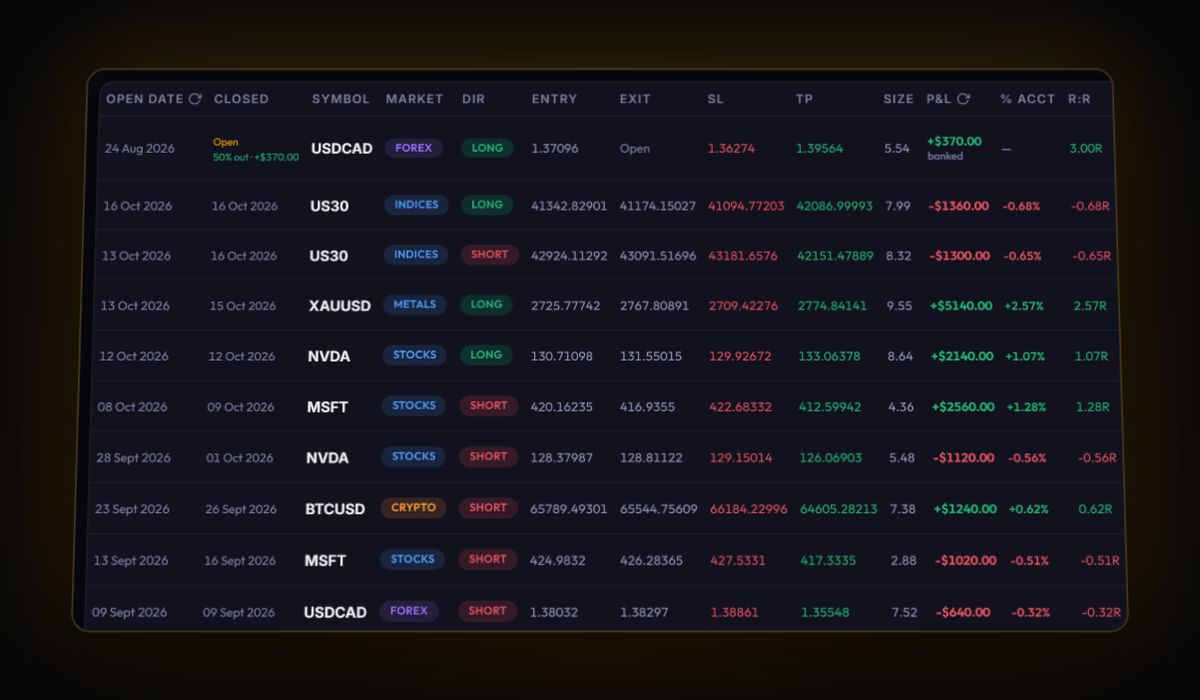
- Average holding time for winners and losers. Holding losers longer than winners is the most common pattern in stock accounts.
- Fees. Even at zero commission, options carry per-contract fees. Total them.
- R. Add stops on the trades you study. The R-multiple calculator shows the method.
Short sales and partial fills
A short sale shows up as a sell followed later by a buy to cover. The journal pairs it the same way as a long, in the order the fills happened, and records it as a short. A buy that filled in three pieces at slightly different prices becomes three fills. They pair with your sells first in, first out, so one idea can become several small trades. Tag them with the same setup so your setup stats count it as one decision.
Quick answers
How do I export trade history from E*TRADE?
In Power E*TRADE Pro open the History tool, click the down-arrow icon in the upper right, enter a file name and save it as CSV.
Should I import the E*TRADE gains and losses report?
No. It matches tax lots, not trades. Import the History transactions and let the journal pair your buys and sells.
How far back does E*TRADE history go?
E*TRADE's API documentation gives two years of transaction history. Use statements for older trades.
Does the journal handle short sales from E*TRADE?
Yes. A sell followed by a buy to cover is paired in time order and recorded as a short trade.
Sources
Last checked: 8 October 2026. Brokers move menus and change fees without notice, so confirm the current steps and costs on E*TRADE's own site before you rely on them.
Your broker history, finally readable
Import your file, see your R, sessions and fees in one place. The free plan holds 50 trades.
Start free, no card